

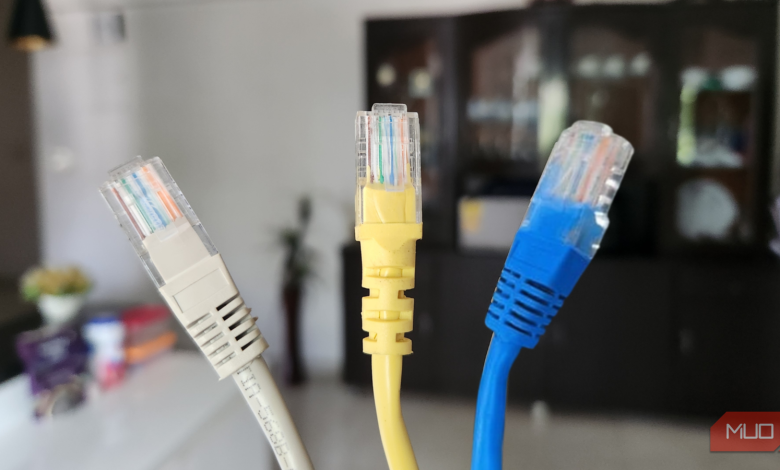
Using an Ethernet cable instead of Wi-Fi is always recommended for the best possible internet connection, but even then, Windows can limit your speeds because the default settings are optimized for compatibility and stability rather than prioritizing performance.
Just a quick online search for “Ethernet speed fixes” will list a plethora of Windows 11 settings to change, but not all of them are worth changing, and doing so blindly without understanding their purpose can do more harm than good. Therefore, I’ve compiled a list of the few necessary Ethernet settings you should change in Windows 11 to maximize your internet speeds.
Increase your Receive and Transmit Buffers
Bigger packet queues mean fewer drops

In networking, a packet is a unit of data (typically 1000–1500 bytes) transmitted over the internet. Typically, your NIC (Network Interface Card) is set to send/receive only 256 packets, and considering how much data PCs need to process these days, that’s quite a small number.
Receive buffers are the buffers for incoming data on your PC, and by default, they’re set to a small size, so processing small packets of data causes more CPU interrupts and overhead. Sometimes, packets arrive faster than your PC can handle, and the NIC discards some of them, which can reduce download speeds.
Conversely, for Transmit Buffers, which are the data your system sends over the internet, a lower rate limits outgoing packets, and during heavy uploads, some packets may be delayed or dropped.
Fortunately, you can increase the packet count for Receive Buffers/Transfer Buffers, and to do so:
- Open Device Manager through the search bar.
- Search for your Ethernet device under Network adapters.
- Open your adapter’s Properties and proceed to the Advanced section.
- Look for Receive Buffers and Transmit Buffers, and change their values from the existing ones.
Changing the value really depends on what sort of workload you have. An ideal setting would be to keep the Receive Buffer count high, something beyond 1024, and the Transmit Buffer moderate, for a balance between sustained upload and lower latency.
Disabling Energy Efficient Ethernet
EEE introduces unnecessary wake-up lag

Built on the 802.3az hardware standard, EEE (Energy Efficient Ethernet) is enabled by default on Windows, and it forces your network adapter into a low-power state, partially shutting it down when it detects no network traffic. While this power-saving measure is admirable, the energy saved from EEE won’t even make a difference in cents on your electrical bill, and it also comes with a counterproductive trait: hidden latency.
The wake-up process from a light sleep isn’t exactly optimal for real-time workloads like gaming or for a PC configured as a home server. EEE causes latency spikes and jitter, and disabling it makes your connection much more reliable and stable. Here’s how to do so:
- Look up Device Manager in the Search bar.
- Expand Network adapters.
- Choose your Ethernet adapter and click on its Properties.
- In the Advanced tab, search for EEE and disable it.
There really are no downsides to disabling EEE other than the fact that it will use slightly more power, and it only matters by a small margin if you’re on a laptop.
Disable Interrupt Moderation
The NIC-to-CPU delay is causing your network latency to spike

The data from the internet is relayed through the NIC to your CPU, and Interrupt Moderation is how frequently both these components communicate. Usually, incoming packets are grouped into a specific queue before being sent to the CPU, or otherwise, a timer manages the queue.
Interrupt Moderation exists to reduce CPU overload by sending data in increments. However, doing so causes latency, as there are microseconds in which your data is retained by the NIC before being sent to the CPU. In real-time applications or gaming, this extra latency can hurt performance.
Modern CPUs are already pretty capable, and the extra overhead from constantly communicating with Interrupt Moderation disabled won’t hurt at all, which is why you should disable it for competitive gaming and applications that require real-time communication, like video calls.
To disable Interrupt Moderation, follow these steps:
- Open Device Manager.
- Search for your Ethernet device under Network adapters.
- Select Properties.
- Go to Advanced, search for Interrupt Moderation, and disable the setting.
Switch to a faster DNS resolver
Cloudflare or Quad9 DNS beats your ISP’s default
In recent times, you may have noticed the growing popularity of DNS services such as Cloudflare, Quad9, and others. There’s a good reason for that: they significantly improve your internet connection by stabilizing it. Simply put, a DNS server is the middleman that routes your system to the web address.
A good DNS server can help increase your internet speeds by reducing latency. Your default DNS resolver might be slow and, at times, when it’s under heavy load, it can slow data transfers. In certain cases, download speeds increase, but only if they were initially limited by poor routing. A good DNS resolver can link you to a nearby server for whatever service you’re accessing, improving latency and download speeds.
Here’s how to change your DNS from your default resolver:
- Open Settings and then navigate to Network & Internet.
- Select Ethernet and then DNS Server Assignment.
- Edit and change to Manual.
- Under IPV4, enter your desired DNS.
The go-to option for most is Cloudflare, although Google’s DNS is just as good. Still, I recommend running a DNS benchmark to see which one holds up best for your connection, as location plays a huge role in that regard.
Leave these Ethernet settings alone
Even though most default Windows 11 settings work against you, some of them work exactly as intended. Most online guides present a long list of Ethernet settings to change without explaining what each serves or what drawbacks it introduces. Settings like Speed and Duplex, Jumbo Frames, and similar shouldn’t be enabled. Some of them might claim to increase performance, but they can work counterintuitively. For instance, manually forcing speeds and duplex can backfire — setting to half-duplex means data can only be sent in one direction (unless your network configuration supports speeds beyond 100Mbps in full-duplex), tanking your overall throughput. Conversely, Jumbo Frames can cause latency and packet loss, as they take 6 times longer to handle a 9,000-byte packet than a standard 1,500-byte packet.

- Brand
-
Dasook
- Length
-
6ft
- Cable Type
-
Ethernet
- Connector Type
-
RJ45
With high speed and bandwidth, a Cat 8 Ethernet cable is ideal for low-latency and lag-free gaming, as well as motion-free action and accurate visuals. The Dasook Cat 8 Ethernet Cable is a wise choice for gamers, not only because it meets the criteria but also because you get excellent value with two in a pack.